Category: Uncategorized

  • Flow State: How to Enter “The Zone” and Unlock Peak Performance

    Flow State: How to Enter “The Zone” and Unlock Peak Performance

    Athletes, writers, and even entrepreneurs sometimes tap into a rare mental state where everything seems effortless. This state is known as flow, often described as “being in the zone.”

    While the term was first researched in the 1970s, studies on flow state psychology are still emerging. What we do know is that flow can dramatically enhance both mental and physical performance, helping people push past limits and unlock creativity.


    What Does Flow Feel Like?

    Flow is a mental state in which a person is:

    • Fully immersed in the activity
    • Deeply focused without distraction
    • Experiencing effortless concentration
    • Losing track of time

    When in flow, performance often feels automatic and smooth. Athletes describe heightened coordination, musicians lose themselves in the music, and writers produce pages without realizing hours have passed.


    Flow State in Sports

    A boxer is a great example. After warming up and riding a wave of adrenaline, boxers often feel sharper hand-eye coordination, faster reactions, and even time dilation — where punches appear to slow down, giving them more space to respond.

    This phenomenon isn’t exclusive to athletes. Anyone engaged in challenging but rewarding tasks can experience flow.


    Time Dilation in Flow State

    One of the most fascinating effects of flow is time distortion. Hours can feel like minutes. Here’s why:

    • The prefrontal cortex (responsible for time awareness and self-reflection) reduces activity.
    • Focus narrows completely to the task at hand.
    • External distractions fade away.

    As a result, the brain stops tracking time normally, allowing us to feel deeply absorbed in the present moment.


    How to Enter Flow State on Command

    While flow often happens naturally, it is possible to train your brain to enter it more reliably. Here’s how:

    1. Choose the right challenge – Pick a task that is difficult enough to stretch your skills, but not so hard that it feels overwhelming.
    2. Set clear goals – Define exactly what success looks like for the session.
    3. Eliminate distractions – Silence notifications, create a focused environment, and set aside uninterrupted time.
    4. Break it down – Divide tasks into smaller, manageable steps to prevent mental resistance.
    5. Use a ritual – Create a pre-task signal (e.g., a playlist, a routine, or even a breathing exercise) that tells your brain it’s time to focus.
    6. Focus on process, not outcome – Flow thrives on engagement, not pressure.
    7. Do what you enjoy – Intrinsic motivation makes flow easier to achieve.

    Practice Makes Flow Easier

    Like any skill, entering flow becomes easier with regular practice. Over time, your brain learns how to slip into this heightened state more naturally.

    The benefits — time dilation, sharper focus, greater creativity, and improved performance — make flow an incredibly powerful tool for personal and professional growth.


    Final Thoughts

    Flow state isn’t just for elite athletes or artists. With the right conditions, anyone can learn how to “get in the zone” and experience deeper focus, enjoyment, and productivity.

    By balancing challenge with skill, removing distractions, and building consistent rituals, you can start entering flow more often — and use it as a superpower in your daily life.

  • Understanding and Maintaining Vein Health

    Understanding and Maintaining Vein Health

    Why Vein Health Deserves Your Attention

    When people think about health, they often focus on muscle growth, fat loss, or mental well-being. But there’s one area that silently powers every workout and every heartbeat—your veins.

    Your veins return deoxygenated blood back to your heart, making them a critical part of your circulatory system. If they aren’t functioning properly, it can affect your performance, recovery, and even your long-term health.


    The Anatomy of Veins

    Veins are blood vessels designed to carry blood back to the heart. Unlike arteries, they:

    • Have thinner walls and less muscular tissue.
    • Contain valves that prevent blood from flowing backward.

    When these valves weaken or fail, blood can pool in your legs, leading to conditions like varicose veins and chronic venous insufficiency (CVI).


    Common Vein Conditions

    • Varicose Veins – Enlarged, twisted veins that may appear blue or purple. They can cause aching, swelling, and heaviness.
    • Spider Veins – Smaller, visible lines on the skin, often red or blue, common on the legs and face.
    • Deep Vein Thrombosis (DVT) – A dangerous blood clot in a deep vein, usually in the legs. If the clot travels to the lungs, it can cause a pulmonary embolism.
    • Chronic Venous Insufficiency (CVI) – When blood doesn’t return properly to the heart, causing swelling, skin changes, and discomfort.

    6 Tips for Healthy Veins

    1. Keep Moving

    Walking, running, cycling, or swimming all strengthen your leg muscles, which act as pumps to push blood back toward your heart.

    2. Elevate Your Legs

    If you sit or stand for long hours, elevate your legs above heart level for 15–20 minutes to reduce swelling and improve circulation.

    3. Use Compression Stockings

    These apply gentle pressure to your legs, preventing blood pooling and improving flow. They’re especially helpful if you already have varicose veins or stand a lot at work.

    4. Maintain a Healthy Weight

    Excess weight puts additional strain on your veins. A balanced diet and regular exercise reduce this pressure and support better circulation.

    5. Stay Hydrated

    Adequate water intake keeps your blood thinner and flowing smoothly. Aim for about 8 cups (2 liters) a day, while limiting excess salt to avoid swelling.

    6. Leverage Fitness Trackers

    Modern fitness trackers don’t just count steps—they monitor heart rate, blood pressure, sleep, and activity. Tracking these metrics helps you stay proactive with your circulatory health.


    When to Seek Medical Advice

    See a healthcare provider if you notice:

    • Persistent leg swelling or pain
    • Visible, painful, or bulging veins
    • Skin discoloration around your legs or ankles

    Early treatment prevents small issues from turning into serious conditions.


    Final Takeaway

    Strong muscles fuel performance—but healthy veins keep your body functioning at its core. Don’t overlook them. With a few proactive habits, you can improve circulation, reduce risk of vein conditions, and support overall fitness and longevity. Style changes and awareness can make a significant difference. Remember, your veins are hardworking heroes that deserve some attention too!

  • A beginners guide to building you first PC from scratch.

    A beginners guide to building you first PC from scratch.

    In our decade more than any other, content creators, gamers, and internet professionals across the web spend a ridiculous amount of time embracing their passions and creating a lifestyle around what they love. If your a content creator, a business professional, or someone who loves to grind on games, you’ll need a capable device.

    For whatever reason you need to build you first setup , this article will guide you through the basics of building a computer, while also informing you of the hazards you could face when working with some of this hardware.

    Budget

    There are many things to consider when building the foundation to your setup. For starters, think about your budget; How much are you willing to spend on your setup? Most would agree that low end costs for a decent build can be about $400.00 USD, if your diligent in searching for parts. But this price can go even beyond a couple grand.

    Parts

    Once you’ve calculated your budget, it’s time to think about the parts. A computer, of course, is a machine containing a variety of parts that help it ‘compute’ or problem solve through input, output, and complex mathematics.

    Here are all the core parts necessary:

    • Case/Tower
    • Core Processing Unit(CPU)
    • Graphics Processing Unit(GPU)
    • Motherboard
    • RAM
    • SSD
    • HDD
    • Cooling Fans
    • Power Supply
    • Wires

    The term ‘wires’ is left vague because most of the time, when buying a brand new part, especially from a trusted company and provider, you’ll find cables or wires for that corresponding part within the packaging. Make sure that when researching these parts, you find components that are meant to fit together, and that are compatible. For example, all motherboards have a corresponding socket for the CPU. Some take Intel CPUs, while others only take AMD CPUs.

    Note that there are many extra devices you can get for your computer, such as water cooling and even small displays. This list however, just shows the basics for what you need, some will even say a hard disk drive isn’t even required to boot the computer, however you’ll most likely need it.

    Safety/Hazards

    Building a computer is simple, and actually pretty fun when you get the hang of it. Though you are working with tools, hardware, and electricity, you want to make sure that anything bad that can happen, won’t happen.

    Photo by giuse on Unsplash

    Electricity and Grounding

    When working with computer hardware, and most other electronics, it’s actually possible to build up static electricity through the process. This can be very dangerous for both you, and the device. You can be at risk of this because of the possibility of static shock if you’re not careful. For your computer, if there’s built up static within the parts the first time the device is booted, it could damage the PC.

    The point is to diffuse the static electricity, or ground it. Grounding is electricity’s nature of traveling back to the ground.

    Tips to prevent the build-up of static, and for using ‘Grounding’

    • Avoid wearing socks and baggy clothes that quickly build up static electricity.
    • Choose to have your workspace on a non-conductive floor, like concrete or wood.
    • Use an anti-static wristband, and an ESD mat.
    • Rubber gloves WILL NOT discharge static electricity!

    Protective Equipment

    While rubber gloves wont discharge static, other types of personal protective equipment is still a good idea, especially when working with tools and hardware. Always put on eyewear before working, especially because from time to time, you’ll be getting your face close to your hardware. Your work area is also part of your work equipment, your workbench should be clear of any hazards. Make sure that if possible, you wont knock anything over or trip easily if you turn around without thinking. Proper lighting ensures that you can see what you’re doing and where your hands are. Headlamps are a great way to keep a light where you need it, without struggling with standing it up somewhere that’s going to be in your way, or holding it. High end headlamps have features like rechargeable batteries and magnets for hassle free mounting.

    Manuals

    Reading installation manuals as they come with the parts you buy, is an essential habit to knowing how to build a PC. Manuals are essential, because every part has their corresponding ports, connectors, and special features. Knowing this will make building your PC and fitting your parts much easier.

    Tools

    There aren’t a ton of tools you actually need to build a PC. A versatile driver set and some thermal paste would do, but there are other tools that make the job way easier.

    Helpful Tools:

    • Screwdriver set
    • Thermal Paste
    • Canned Air
    • Zip Ties
    • Pliers/Vice Grip
    • Headlamp
    • Screw Organizer

    Step-by-Step

    Every PC builder does it a little different, but over time there’s been a general pattern, and easy shortcuts to make building a PC simple and fun. I recommend watching a hands-on demonstration to familiarize yourself with the parts you’ll be using.

    Walkthrough

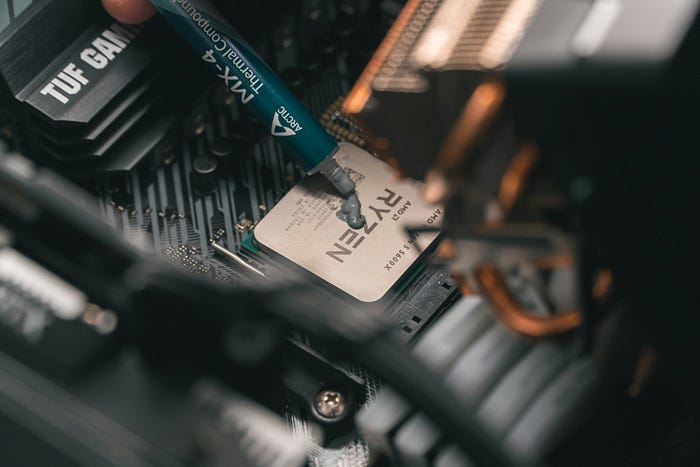
    Step 1) Unbox your motherboard, install your CPU and thermal paste.

    Step 2) Unbox, then install your graphics card(GPU) and CPU cooling to the motherboard.

    Step 3) Install your RAM and SSD onto the motherboard and set aside.

    Step 4) Install case fans.

    Step 5) Attach the power supply to the case.

    Step 6) Attach the HDD onto the case.

    Step 7) Install the motherboard into the case tower, and attach all the cables from previous parts to the motherboard(if applicable).

    Step 8) Boot it up!

    Once your PC boots to bios, you’ll know you’re in business. From here it’s just software and optimization.

    What’s left:

    • Install an Operating System, if applicable.
    • Update drivers and software
    • Optimize performance, and if you want to, overclock your build.
    Photo by Joshua Kettle on Unsplash

    Conclusion

    For many tasks nowadays, a strong computer is required and knowing what you’re doing can make a world of difference, and also gives you room to upgrade down the line. As long as you have the right parts, and knowledge to put them together, putting together a PC can become more fun of a task one would think, and the reward is great. Research your parts, read your manuals and go through the steps, then sit back and admire your first computer!

  • How rechargeable batteries go bad over time.

    How rechargeable batteries go bad over time.

    Most if not all of the devices that we use, such as personal devices and utilities, use a battery, or multiple batteries. From cars, to power tools, to personal devices, batteries power our life. However, we all know the frustrating feeling of a phone battery going bad, or a pair of your favorite wireless earbuds not charging anymore. Why does this happen?

    Many people forget, or just don’t know about rechargeable batteries, actually having an expiration date. It also may be that it suffered damage from hot or cold temperatures, or worse, corrosion. Let’s look at the different ways batteries can become damaged and worn over time.

    AI example of a battery–similar to the ones used in common 24v power tools.

    How do batteries go bad?

    A quick summary on how batteries work is important to understanding how to protect some of your devices. The two parts in a battery to keep in mind when thinking about corrosion are the terminal and the electrolyte(not the kind in gatorade!). The electrolyte is responsible for allowing the battery to charge and power things, basically allowing the passage of electrical current. The terminal is the part of the battery that makes contact with the device you’re plugging in to, and when you use your device for long enough, the material that’s in the battery’s terminal begins to corrode.

    Corrosion

    When an electrolyte that’s inside of a battery reacts with metal components during its charge and discharge cycles, it creates pressure from the hydrogen and oxygen gas that’s created as a result of the chemical reaction. These gases then leak, and react with moisture in the air, which then causes the build up of corrosive chemical compounds. The most common sign of corrosion in the battery terminal is a white powder-like substance.

    Charge Cycles

    Every battery has an expiration date. This expiration date is determined by how many charge cycles the battery is able to last through. One charge cycle happens, when the charge from a battery goes from 0% or empty, to 100% or full, and then back down to 0%. For example: Lithium Cobalt Oxide (LiCoO2), is supposed to last around 500 cycles, depending on conditions, while Lithium Iron Phosphate (LiFePO4), can last up to 4000 cycles. Think of these cycle estimates like miles on a car, depending on the shape of the vehicle after 100k miles or so, without maintenance or replacing parts it either will or won’t, be a broken vehicle. So after a few years, an older phone could have amazing battery health because of the care that was taken. On the other hand, if you don’t take proper care of your battery, it’s bound to have damaging effects on the battery’s health.

    Personal Safety

    It’s very important that if you spot corrosion, or other signs of damage on your battery or device, you practice safe handling, and wear proper protection if applicable.

    Watch out for these hazards:

    • Chemical burns
    • Ingesting harmful substance
    • Electric shock
    • Environmental contamination
    • Combustion
    • Breathing chemical compound

    While working on a battery, it’s important to use personal protective equipment, such as gloves, goggles, and possibly even an apron. Make sure that you use non-conductive tools in order to further prevent the risk of electrical shock. In most cases, battery repair or battery replacement is best left to the professionals, because of its possible risk.

    Battery Care 

    How does one take proper care of a battery? In cases like wireless earbuds, or other devices with smaller batteries, it’s probably best to get a replacement. However, let’s take power tools for example. Yes, they’re tough, but they’re expensive. Regularly checking the condition of the battery’s terminals could save a hole in your wallet. 

    A white, blue, or green, powder-looking substance could be a sign of corrosion in your battery’s terminal. A mixture of water and baking soda can be used to clean these terminals.

    In lead-acid batteries, leaving the battery discharged can lead to the formation of lead sulfate crystals on the battery plates. This is called sulfation and permanently damages the battery. Lithium-ion batteries can suffer from capacity loss when left discharged for too long. The battery’s internal chemistry becomes unstable, leading to a decline in the battery’s ability to hold a charge, as well as deliver power effectively.

    Conclusion

    Now that you know the basics of corrosion, and how batteries may lose life over time. You can now rest easy knowing that as long as you take the right steps, taking care of your devices doesn’t have to be that hard. Keep them dry, keep them charged, and keep them clean!